You haven't signed in yet, you can have a better experience after signing in
*Please complete the payment within {{receiveCouponInfo.expire_at}}Previous use*
You haven't signed in yet, you can have a better experience after signing in
 Sound for Remote Desktop audio redirection remote desktop software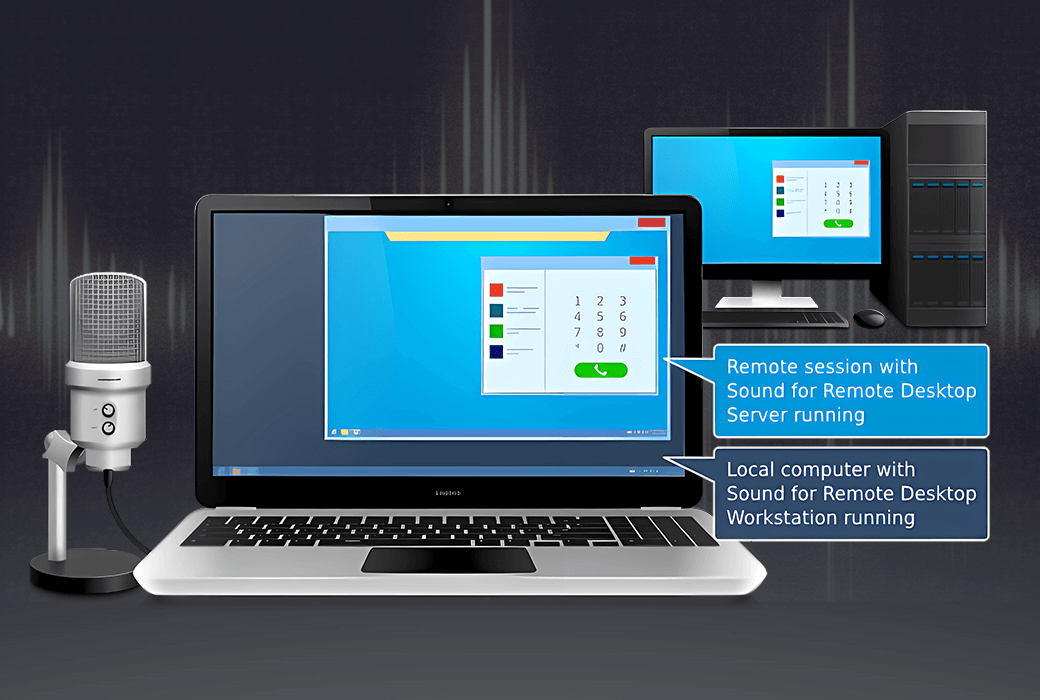


Activity Rules
1、Activity time:{{ info.groupon.start_at }} ~ {{ info.groupon.end_at }}。
1、Activity time:cease when sold out。
2、Validity period of the Group Buying:{{ info.groupon.expire_days * 24 }} hours。
3、Number of Group Buying:{{ info.groupon.need_count }}x。
Please Pay Attention
1、Teamwork process: Join/initiate a Group Buying and make a successful payment - Within the validity period, the number of team members meets the activity requirements - Group Buying succeeded!
2、If the number of participants cannot be met within the valid period, the group will fail, and the paid amount will be refunded in the original way.
3、The number of people required and the time of the event may vary among different products. Please pay attention to the rules of the event.
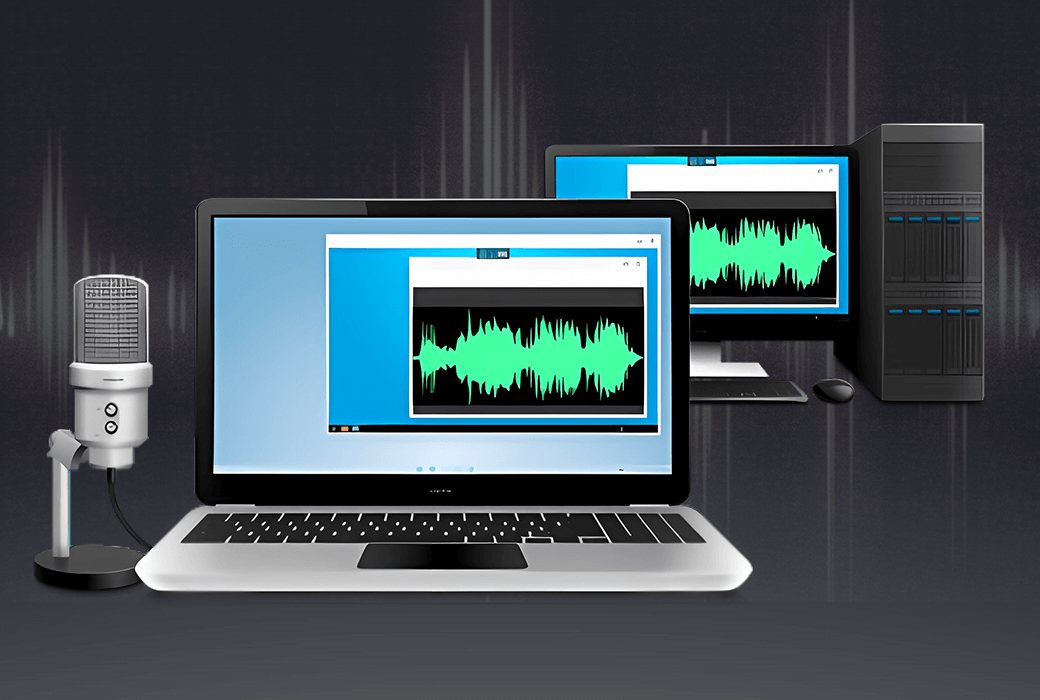
Sound for Remote Desktop is a reliable software solution that enables bidirectional audio connectivity between local workstations and remote desktop sessions.
Under standard circumstances, bidirectional audio streaming in remote desktop environments is problematic or even impossible to implement for applications such as Microsoft Teams, Skype, Zoom, etc. The DirectSound application itself does not support audio input/output functionality in remote desktop environments, therefore microphones cannot be used in remote sessions.
The remote desktop sound feature allows audio streams to be transmitted to remote Windows sessions with low latency and high sampling rate, without any interruptions or interruptions in sound.
working principle
The remote desktop audio solution is very easy to use. This plan consists of two parts: the workstation part and the server part. The workstation section should be installed on the local workstation, while the server section should be installed on the remote server you want to log in to.
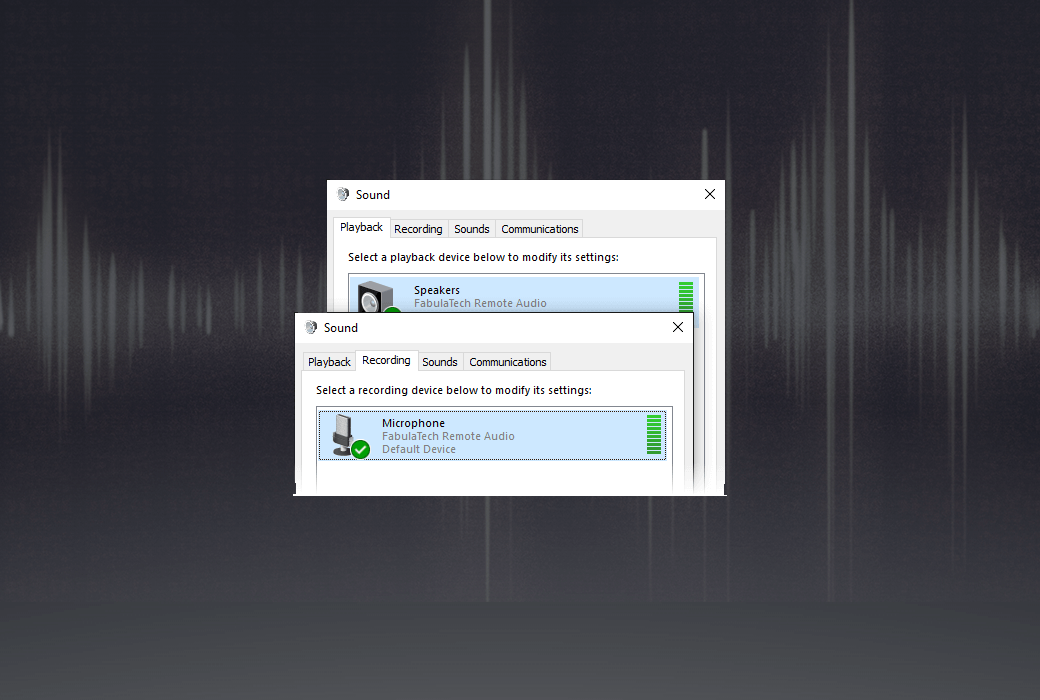
After installing these two components, the audio stream will be automatically transmitted every time you log in to the remote desktop. The audio software running remotely can receive input audio, just like a microphone, headphones, or other audio device directly connected to a remote computer. The output audio will be played from the remote session to your local headphones or speakers.
In a multi-user environment (Windows Server operating system), if multiple users are logged into the remote end, you can ensure that each audio device is isolated in its independent session, so you don't have to worry about others hearing your incoming or outgoing audio streams. You don't need to search for your microphone or headphones in other users' input/output device lists. This isolation mechanism allows you to fully focus on your audio stream.
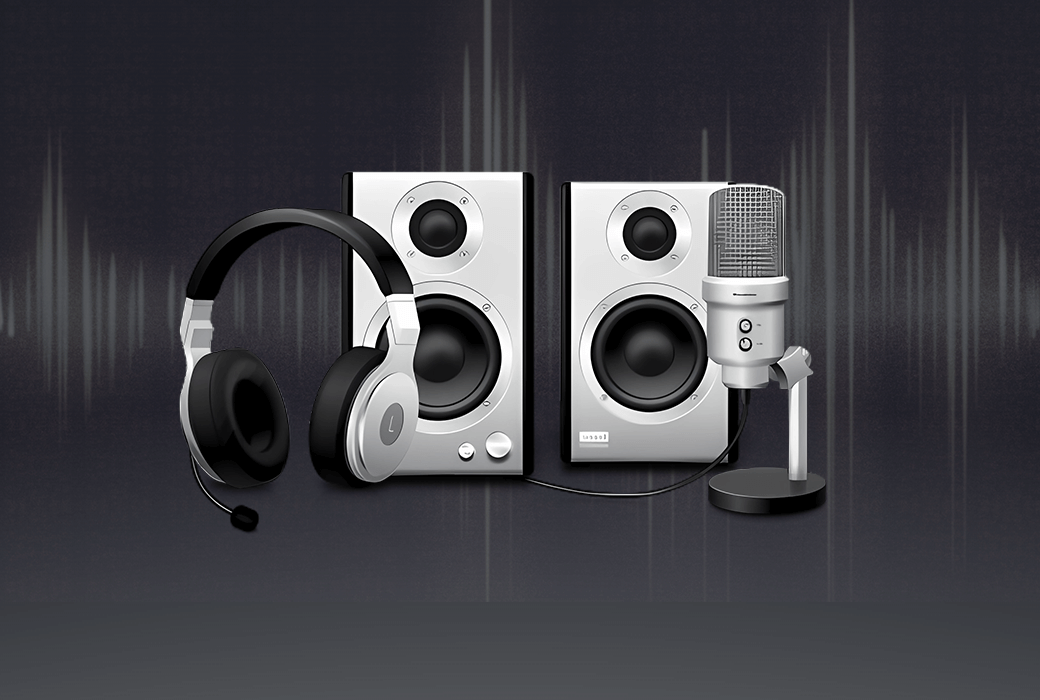
All types of audio devices are supported. It doesn't matter whether the headphones or microphone have a USB port or a 3.5mm jack. No special audio input/output devices are required, and no modifications are needed to existing equipment. Any headphones or microphone can work properly.
Sound for Remote Desktop supports multiple remote desktop protocols, including Microsoft RDP, Citrix ICA, Amazon WSP, DCV, Omnissa (VMware) Blast, and Teradici PCoIP. Regardless of the environment used (Remote Desktop Services Microsoft Azure、Windows 365、Citrix Virtual Apps and Desktops、Omnissa (VMware) Horizo n. Amazon workspaces, AppStream 2.0, etc. are all compatible. Any compatible client software can be used to access the remote end.
Sound for Remote Desktop only transfers data directly between the workstation and server program components installed on your computer. It will not connect to FabulaTech or any third-party servers. The only exception is the optional version checking function, so it can work perfectly even without an Internet connection.
The connection between the workstation and the server is established through a virtual channel in the Remote Desktop Protocol. Therefore, the security level of this solution is the same as the security level you set for regular remote desktop connections.
You can connect to remote server 1 from the workstation. Then initiate a connection from server 1 to another server 2 session. No additional configuration is required to access the device on server 2.
If you are looking for a solution for Linux or macOS, then you have found it. The remote desktop sound feature runs perfectly in macOS and most Linux distributions. The list of compatible remote desktop clients is also constantly increasing.
Official website:https://www.fabulatech.com/sound-over-rdp.html
Download Center:https://sound-for-remote-desktop.apsgo.cn
Resource Download:https://www.fabulatech.com/sound-over-rdp-resources.html
Delivery time:Manual online processing
Operating Platform:Windows、macOS、Linux
Interface language:Supports English interface display and multiple language options.
Update Description: 3Monthly License: Supports 3 months of updates and usage. Lifetime license: After purchase, it supports 1-year updates and upgrades. After 1 year, the current version will stop updating, but this license will remain valid for this version.
Trial before purchase:7-day free trial.
How to receive goods:After purchase, the activation information will be sent to the email address at the time of placing the order, and the corresponding product activation code can be viewed in the personal center, My Orders.
Number of devices:According to the purchased authorization.
Replace computer:Uninstall the original computer and activate the new computer.
Activation guidance:To be added.
Special note:To be added.
reference material:https://www.fabulatech.com/sales-faq.html

Any question

Please copy all lines of the license key, including -- BEGIN/-- END. If it still doesn't work, please contact: support@fabulatech.com Or visit our online ticket chat.